Friday, March 15, 2024

Setting the Output Power on the IC-706

This information is to help me remember how to set the output power on my IC-706.  It is a set of notes that may not make full sense to everyone. 
  1. Press and hold the Display Button until the display changes
    • The lower left corner should show a Q number
  2. Use the Band Up/Down buttons to change the display until you find Q1 RF POWER
  3. Rotate the Tuning Knob to change the number on the screen to what you want based on the table below.
    • Note that each "setting" is actually a range as you rotate the knob through it. 
  4. Press/Release the Display Button to return to normal operation.
Here are the power settings as measured on an Icom IC-706 MK II (not G). 
Band->HF/6-------2 
H    100-95    19-19 
9     95-85    18-16 
8     80-68    16-13 
7     67-53    13-10 
6     52-40    10-8 
5     39-28     8-6 
4     27-20     6-4 
3     19-12     4-2.8 
2     11-6    2.8-1.7 
1      6-3    1.6-1.0 
L    2.5-2.0  0.9-0.8
        ^        ^
      Power    Power

Wednesday, March 13, 2024

AHT-10 and the Pi 400 - Monitoring Temperature and Humidity

I've built a few projects that kept track of temperature, humidity and barometric pressure in the past couple of years.  Each of them used one of the Raspberry Pi variants...  well, there was one that used the Adafruit Feather M0 WiFi (Link to the Feather M0 with WiFi) and a BME280 that ran a web server...  Maybe I'll write that one up next...

My first project used a Pi 3 B and the DHT10 sensor.  

It sits in a container and keeps track of the temperature and humidity for me, logging it to a file every 15 minutes.  It has been doing a pretty good job until last year when the humidity reading went wacko.  It reads high all the time.  It's also used to access the internet (complete with mouse, monitor and keyboard). 

My next project used a Pi 3 A+ with a BMP390 (Temperature and Barometric pressure) and a SHT31 (Temperature and Humidity).  Plus a Real Time Clock and a 2x16 LCD Display.  

It, too, lived in the container monitoring temperature and humidity and logging it every 15 minutes.  The log is archived daily on a thumb drive.  

My third project saw me trying to combine the tasks both were doing.  I wanted something to access the internet and to track Temperature and Humidity.  For this task I pulled a Pi 400 out of the box where it has been sitting unused and pressed it into service.  For monitoring the Temperature and Humidity I chose the AHT10.  This part is readily available and less expensive than the BMP390.


I connected wires to the AHT10 with pin jacks on the ends, then connected the wires to the 40 pin header on the rear.  Here is where the wires are connected:

Connection on AHT10

Pin on 40 pin header

VIN

4

GND

6

SCL

5

SDA

3


Next, there are a series of commands needed to get the Pi 400 ready to run the python3 script that will do the work for us.  These steps come from an Adafruit page that describes what needs to be done to install the libraries we need for the project.

Caveat - There are extra steps here I did not need in earlier incarnations of this project.  This is because the Pi 5 has the 'bookworm' release of the Pi OS.  With the new release any libraries loaded for Python that are not part of the regular release path (ie loaded using the apt command) require you to install them in a 'virtual environment'.  I did not delve into the whys and what fors.  I just read the information and implemented it.

This is the link to the Adafruit page that has the steps I used and a whole lot more good information:  Adafruit setup for using Circuit Python libraries

The following are the steps I used, as taken from the Adafruit web page, to get this to work on my Pi 400:

1 - Install python3 full:

$ python -m venv env –system-site-packages

2 - Make sure the virtual environment python is installed using these commands:

$ sudo apt install python3-full -y

$ sudo apt install python3-venv

3 - The virtual environment needs to be activated:

$ source env/bin/activate

4 - Then run the following commands to be sure the pi is correctly configured and to install blinka:

$ cd~

$ pip3 install –upgrade adafruit-python-shell


$ wget https://raw.githubusercontent.com/adafruit/Raspberry-Pi-Installer-Scripts/master/raspi-blinka.py

$ sudo -E env PATH=$PATH python3 raspi-blinka.py

5 - Then activate the virtual environment

$ source env/bin/activate

6 - Then install the adafruit library for the AHT10 using this command

$ pip3 install adafruit-circuitpython-ahtx0


7 - Now the python program temp-humidity.py will run (source at the end of this page).

$ python3 temp-humidty.py


I need the program to run every 15 minutes. For this I use cron.
To get the python script to run within the virtual environment using cron you need to put the following line into your /etc/crontab file (the following should be one long line):

*/15 * * * * piuser source env/bin/activate ; python3 /home/piuser/temp-humidity.py >> /var/tmp/temperature.log 2>&1 ; deactivate

  • The */15 tells cron to run this every 15 minutes on the quarter hours (ie 00, 15, 30 and 45).
  • The next four * tells cron to run this every hour, day of month, month of year, and day of week (google cron examples to learn aboout cron)
  • The pisuer is the user running the program (it is run from /home/piuser by cron).
  • The three commands used are as follows:
    • source env/bin/activate (this command activates the virtual environment)
    • python3 /home/piuser/temp-humidity.py >> /var/tmp/temperature.log 2>&1 (this command runs the program and sends an stdout or stderr messages to a log file in /var/tmp)
    • deactivate (this command deactivates the virtual environment)
  • And they are strung together using semicolons (the following should be one long line):
source env/bin/activate ; python3 /home/piuser/temp-humidity.py >> /var/tmp/temperature.log 2>&1 ; deactivate

Last, here is the Source code for the temp-humidity.py program:

# Python 3 script to grab Temperature and Humidity from an AHT10, display and log them.
from time import sleep, strftime, time
import board
import adafruit_ahtx0
i2c = board.I2C()
sensor = adafruit_ahtx0.AHTx0(i2c)
filename = "/home/piuser/temperature.csv"
running=True
# Write the values to the file
def write_file(filename,f,h):
    log = open(filename, "a")
    log.write(strftime("%Y-%m-%d") + ', ' + strftime("%H:%M:%S") + ', Temperature: ' + str(round(f,1)) + ', Humidity: ' + str(round(h,2)) + '\n')
    log.close()
while running:
    try:
        # Get the temperature from the AHT10
        temperature_f = (sensor.temperature * 9/5) + 32
        # temperature_f = temperature_c * (9 / 5) + 32
        # Get the humidity from the AHT10
        humidity = sensor.relative_humidity
        #print the values to stdout
        print(
                "Temperature: {:.1f} F   Humidity: {:.2f}% ".format(
                temperature_f, humidity
            )
        )
        # Write the values to the logging file
        write_file(filename,temperature_f,humidity)
        running=False
    except RuntimeError as error:
        print(error.args[0])
        continue
    except Exception as error:
        running=False
        raise error

Let me know how yours works.
Mike Dooley
N5BGZ


Tuesday, March 12, 2024

6BTV 80 Meter Resonator issue

Problem:  The resonant spot for 80 meters on my 6BTV had moved.  In other words, the antenna no longer resonates in the 80 meter band.

Prolonged Investigation:  

  • After a rain event I noticed the resonant spot for 80 meters on my 6BTV had moved.  
  • A few days of sunshine and everything was back to normal.
  • Next rain event, the problem came back.
  • I waited for a few more days of sunshine and a return to normal operation.

Steps to resolve: 

  • I took down the vertical
  • I taped the resonator where the top and bottom caps touch the coil.  
  • I re-installed the resonator and tested to be sure it was tuned where I wanted it to be in the 80 meter band.
  • I put the vertical back up in its normal, operating, position.

Testing the fix:  Another rain event occurred a few weeks later.  After the event I check the antenna and it is still resonant where it is supposed to be in the 80 meter band!  

Conclusion:  

  • Water from the rain was infiltrating the resonator, moving its resonant spot.  
  • After a few days of sunshine the water was gone and the resonator worked correctly.  
  • Taping the resonator adequately sealed the resonator from the rainwater.


Thursday, February 2, 2023

How to update the firmware on the QCX

This is based on the tutorial by Simon, VK3ELH found here.

1. Hardware requirements 

a. QCX built and operational 
b. Arduino Uno 
c. Computer capable of running the Arduino IDE and AVRDUDE 
d. USB cable to connect Uno to computer
e. Jumper leads to connect the Arduino Uno to the ISP header in the QCX – female one end, male other end. 

2. Software requirements 

a. Arduino IDE – Arduino IDE Link
b. AVRDUDESS – Go to Zak Kembles blog and download avrdudess - A GUI for avrdude
c. Download the version of the QCX firmware you want to install. 

To get the version of firmware you need you will have to be a subscriber to the QRP Labs email list on groups.io.  You can join groups.io here

This is what you'll see at the top of their main groups.io page.  Click on the 'SignUp' link to join.

If you're already on groups.io (or just joined and logged in), search for the QRP Labs group.  You should find this page where you can subscribe to the list:


After you subscribe and are allowed in ( may take a day for approval), click the files link on the left.  Find the 'Firmware for QCX kits' folder and look inside.  Here is where you will find the hex files (or links to them) for each release.

Important:  Once downloaded, be sure to unzip the file if it is zipped.

3. Preparations 

a. Prepare the Arduino Uno

The Arduino needs to be programmed to act as an In System Programmer (“ISP”).

There is a sketch(program) that comes with the Arduino IDE called “ArduinoISP”.

In the Arduino IDE program menus click File>Examples>ArduinoISP>ArduinoISP. 

Connect your Arduino to your computer and select the correct board and port from the Select Board Drop-Down Menu (or the Tools menu).

Select Board drop-down menu

 Upload the ArduinoISP sketch. 

 b. Connect the Arduino to the QCX’s ISP pins as follows:

Arduino Pin Number QCX ISP Pin
10 RESET
11 MOSI
12 MISO
13 SCK
GND GND


Power the QCX normally via the 13.8V supply rather than powering it from the Arduino to ensure it gets enough power. 

Note:  The 5V pin on the QCX is not connected to the Arduino.

4. Flash the new firmware to the QCX 

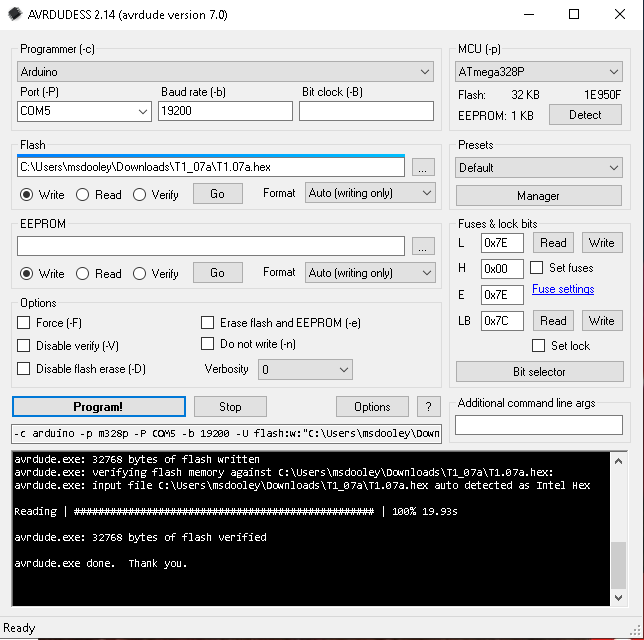
a. Start AVRDUDESS 
b. Select “Arduino” as the programmer 
c. Select the COM port the Arduino is connected to 
d. Enter BAUD rate 19200 
e. Select ATmega328P as the MCU 
f. Select the path where the new firmware is located 
g. Press the Program button.


As shown in the picture, you'll know when it is done programming the chip.

This 'modified' procedure worked for me when programming a circa 2017 QCX radio.  Your mileage may vary. 

Thanks!
Mike Dooley 
N5BGZ

Monday, August 16, 2021

How to replace the memory battery in an Alinco DR599

The Alinco DR-599T dual band (2 meter and 70 cm) rig is a great radio.  BUT, it was manufactured in the 1990s making it 20+ years old.  

Due to its age, the battery that keeps the programmed channel memory from being lost fails.  This is not a problem if you never disconnect the radio from its 12 volt supply.  But, if you do, you lose all of the programmed memories.

If you have some experience soldering, this can be fairly easily solved.

According to the manual, the battery is located in the removeable front panel.

The front panel is easily removed using a #1 Philips screwdriver to remove these four screws.


Disconnect the front panel from the radio.

Remove the back cover of the front panel by removing these two screws using the same screwdriver.


Here is the location of the battery. 

As you can see, someone has replaced this before.  They used a 2032 battery and soldered the tabs and wires to the 2032.  Not  pretty sight.

The battery Part Number is ED0006 from Alinco.  I'm going to use a CR1616 with tabs that I bought from Amazon.  It is a bit smaller and thinner than the 2032 making it an easy fit.

First, we'll remove the old battery by desoldering it from the front panel circuit board

Then install the replacement being mindful of the polarity connections.  The + goes to + and the - goes to -.

Once the battery has been replaced, put the rear cover back on the front panel.

Then reinstall the front panel on the radio.

And we are done!  

Now you can program the frequencies into the channels and they will stay even if power is removed from the radio!

Thanks!
Mike
N5BGZ

Saturday, March 27, 2021

Building a Power Distribution Kit with the Dallas Amateur Radio Club

Being retired gives me a lot more time to do stuff I could not do while working.  For example, the Dallas Amateur Radio Club (DARC) has a thing they do monthly called "Lab and Lecture".  Each month a kit is provided (for a nominal fee) and then there is a 2 hour "google meets" meeting on Saturday where we all build the kit.

This month they had a number of Anderson PowerPole kits to build.  I chose the power distribution box with voltmeter, fuses and USB connections.

Here is the link to the slides for the presentation:


Here is the link to the slides for the presentation:


Here is a picture of my finished kit hooked to a battery.


It has 6 output ports with a (really bright) green led for each.  The led goes out if the fuse is blown.  There is a voltmeter built in and two usb ports on the side (not pictured).

The circuit board was excellent quality.  There was a lot of copper there that required extra heat from the soldering iron.  Be aware that a small 40 watt iron may not be enough to get the job done.

In the end, everything worked and the kit was completed with excellent assistance from the folks on the "google meet" meeting.

Definitely a fun way to spend a couple of hours on a Saturday!

Mike Dooley
N5BGZ

Saturday, February 20, 2021

Experiments Using Wilson FGT-x CB Antennas for Ham Radio

I've been using CB Antennas for Ham Radio for quite some time.  Mostly for 10Meter mobile.  But I found posts on the internet about using the Wilson FGT-x series antennas.

Article by John, KL7JR that talks about this:
https://www.eham.net/article/34857

Referencing other articles he wrote:
http://www.hamuniverse.com/kl7jrcbverticals.html

In these articles John, KL7JR, uses the Wilson FGT-x series of antennas.  And he shows how different lengths of stingers can be used with these antennas to move them to the 10, 15 and 20 meter bands.

For my experiments I bought a pair of FGT-5 (the 5 foot one) Wilson antennas off Amazon.  Then I bought a pair of 36 inch stingers and an MFJ-347 mini dipole mount from HRO.

My first test/experiment was to use one of the Wilson antennas in a mag mount.  This was placed on a metal table and 3 tape measures were used as radials.  It worked pretty good on 20 meters without a tuner!  Using an LDG tuner it also worked on 40, 15 and 10.


Next I used the MFJ-347 to make a dipole out of the two Wilson antennas.  This was mounted on a 16 foot mast made from 2x2 lumber.  You may note short bits of wire hanging off the tips of the stingers.  These brought the dipole into the 20 meter band with no need for a tuner.


Again, using an LDG tuner it also worked on 40, 15 and 10.

These two setups were used for portable operations and did an adequate job...  I was able to make contacts at QRP power levels.  

Further thoughts:  I'd like to find a couple of the shorter FGT-x antenna discussed in John's articles to experiment a bit more.  When I do I'll add more to this article.  

Installing a 6BTV in the backyard

 And this is what it looks like!  But it was not always this way.


In the beginning I picked a location in the middle of the backyard.  At first I considered installing a nice piece of heavy pipe in cement to which the antenna would be attached.  But I thought, what if I don't like it?  Or move and it has to be removed?  

The solution was to put a PVC pipe in the ground in cement, with the top of the cement below ground.  That way, should I need to remove the antenna, I can simply cut the PVC off below ground level and fill the hole with dirt!

A loop of 10 guage wire encircles the PVC pipe and the radials are soldered to it. 


A 3 foot piece of galvanized fence post is slid into the PVC and it will hold the antenna!

The odd furrows in the grass were made with a weed eater on its side.  Into these the radials were laid and held in place with lawn staples from Lowes.


After everything was hooked up. The radials, ground rod, lightning arrestor and coax.  The rocks were placed to make it look nice in the yard.


The Coax and ground wire go from the antenna to the box mounted on the outside wall of the house.  Here we have another lightning arrestor and ground rod.  From this box we have coax going into the attic.  Yes, there is a second coax pull from the box to the ham room... for future stuff....  


The ground wire and both coax were brought into the ham room through the attic and wall.  This is behind the door.   When the door is open, you do not see this entry point.


Last, the trim plate is installed for a cleaner look.


And it works!  Tuning of the vertical will be looked at in a later post.

Thursday, March 23, 2017

APRS on the cheap

APRS On The Cheap

Building an APRSDroid system using information from the internet

I have been wanting to build a simple APRS tracking device.  No good reason.  Just wanted to build one.
To that end I have been reading various web sites and posts about using an App call APRSDroid on an android phone with the Baofeng UV5R Chinese radio.
A schematic for the radio to phone cable:
- http://k6vhf.com/baofeng-and-aprsdroid/
A youtube video on using APRSDroid and the UV-5R:
- https://www.youtube.com/watch?v=8-9_8HVkvgc
The APRSDroid site:
- https://aprsdroid.org/
A google group about the android, aprs, and the baofeng radios: (appears to be gone)
- https://groups.google.com/#!topic/i3detroit-public/pmZUhkI2zAA
A site to roll your own cable:
- https://willbradley.name/2015/08/09/aprs-via-rf-cable-for-connecting-aprsdroid-to-a-baofeng-radio/
A really good Instructable:
- http://www.instructables.com/id/APRS-and-the-UV-5R/

I already have the radio.

Actually a pair... I bought one online a few years ago just because of the price and features.  It seems like a good little radio although programming is best done using a PC based program called CHIRP and a programming cable.

For the android phone I sent an email out to some friends to see if anyone had an old one available.  I ended up with two.  A Samsung Galaxy Note 3 and a Motorola Moto E.

Here's the Samsung.


As you can see, I familiarized myself with the Galaxy, logged onto the Google Store and downloaded the APRSDroid App (cost $4.95).  The next step was to request an ID from the creator of the App.  I received it a day after requesting it.  The software works very well via the wifi connection!

Now I need to get a cable to connect the radio to the phone.  I have been looking at several sites on how to build these cables.  On a search of Amazon I found they sell the cable pre-built.  $18 later it is on order with an arrival date of 22 March 2017.

The cable can be found here on Amazon:
http://www.amazon.com/gp/product/B01LMIBAZW/ref=od_aui_detailpages00?ie=UTF8&psc=1

It includes the APRS-K2 Cable, Reverse Connector Adaptor and a Quick Start Guide.

The cable arrived and I spent some time hooking things up, reading on the web, and setting options.  After a bit it worked!

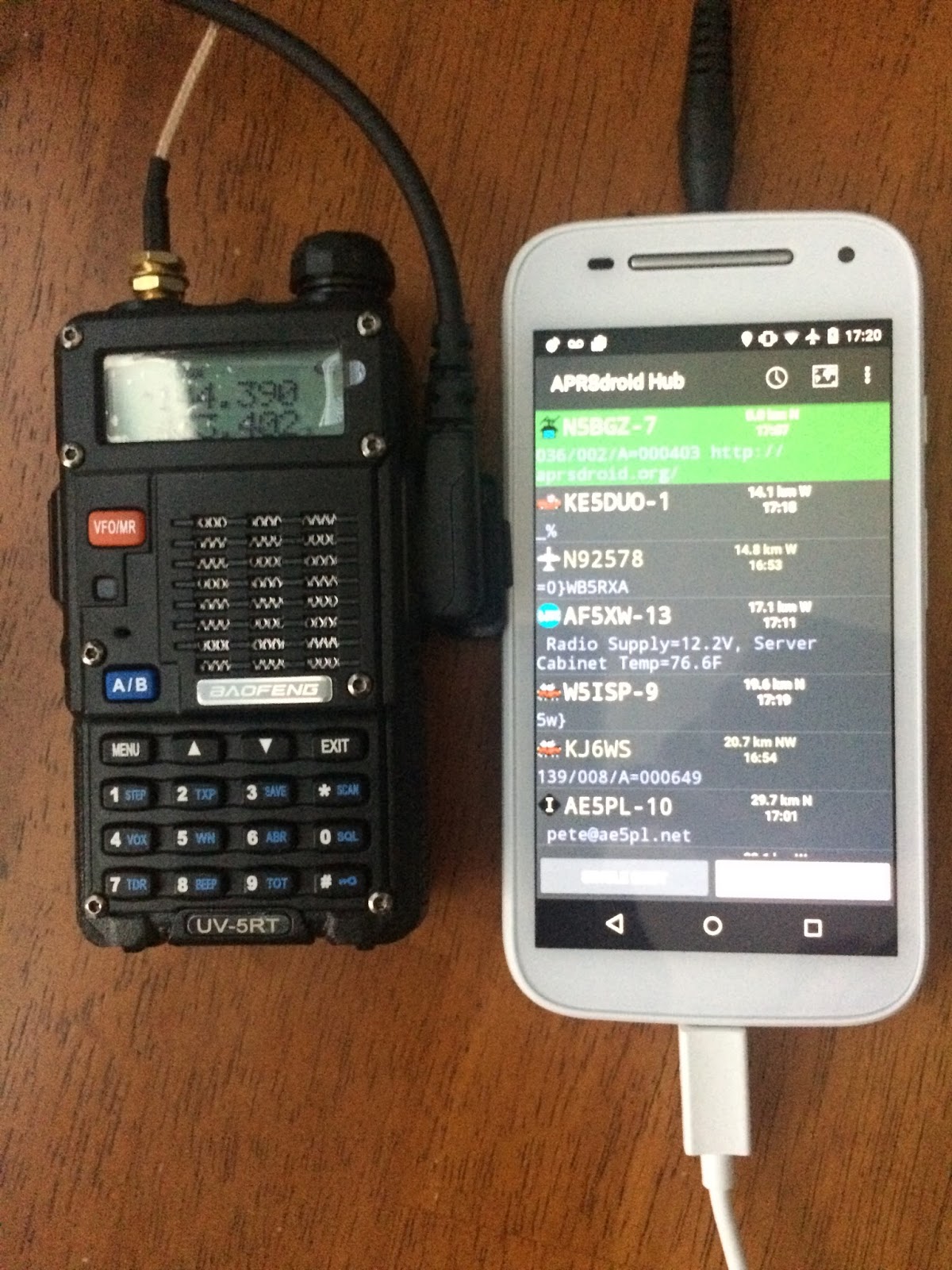
Here it is hooked up and working with one of the android phones I picked up (Motorola Moto E).

Total cost:

  • Baofeng UV5RT dual band HT: free (won 15 months ago at PARK Christmas party)
  • Motorola Moto E android cell phone: $10.00
  • Cable to hook them together - $18.89
  • APRSDroid app from google play - $4.99
  • A few hours of my time (Hey it was this or reruns....)

Some of the things I needed to do for this to work:

Radio:

  • SQL = 1
  • VOX = 5
  • Volume up 1/3 from on

APRSDroid:

  • Position Reports > APRS Symbol = \-  (Shows as a House with an antenna)
  • Position Reports > Location Source = SmartBeaconing Position
  • APRS Connection > Connection Preferences
  • Frame Sync preamble = 800ms
  • Audio output = Voice call
  • Hi Quality Demodulator = Checked
  • APRS Connection > Connection Protocol = AFSK via Speaker/Mic
  • With cable plugged into headset/mic connector = Use rocker on side of phone to adjust audio to the lowest level, then bump it up one time.

AND!  

  • The stock HT antenna just did not cut it to get out to the nearest node.  So I used a mag mount sitting on the desk and it worked fine.

Putting it in the car

I put the setup for APRS in the car for testing.  I started doing this a few days ago so I have several work days of experience now.

I turn the phone with APRSDroid and the radio on for my drive to and from work.  Then check how it did using aprs.fi.

I was expecting reliable pings from the APRS setup to march along my route and show me the track on aprs.fi, but this is not to be.  Some days it is good and most days it is marginal.  I've tried a couple of different mag mount antenna with limited improvement.  Here's an example route showing the actual route and the APRS route.


Tomorrow I add an amplifier so the output power will go from ~5 watts to ~20 watts.  The idea is... since this is a shared channel, it is possible I am getting stepped on by other users who cannot hear me and are putting a stronger signal into the I gate.  A bit more power may help.  We shall see.

It is tomorrow and here is a track with the amplifier added to the HT.


The track is much more precise.

Looks like this may be a good way to break into APRS...  at least to get your feet wet.
Thanks,
Mike
N5BGZ

Friday, July 15, 2016

Fox hunt 14JUL2016

The third Fox hunt of the 2016 summer season is behind me.  The hunt starts at 8PM Central time and lasts for 90 minutes.  The two Fox were Brian, K0DTJ, near Half Moon Bay in California and Paul, K4FB, operating from the Polk County EOC (between Orlando and Tampa, FL).

I needed to mow at the XYLs Mom's house (2 + acres) so I was busy for a couple of hours before the hunt and finished at 830PM.  I threw a rope into a tree in her front yard and pulled an EFHW up to about 20 feet.  The other end stretched out in a north/south alignment along the driveway and was hooked via bungee cord to the bed of my truck.

I pulled the K2 out and setup in the bed of the truck to operate.  Here's a picture taken after the hunt was over.
As you can see, it is a working truck.  From this spot, yes standing, I operated. 

I found Brian immediately and bagged my first pelt at 01:54Z (8:54PM local)  Then spent the next 20 minutes looking for Paul.  Finally found him, but he kept rising in and out of the noise, never hearing my call. Ah well.....  9:30PM arrived and the hunt ended.

So hunt #3 is done and I bagged one pelt.  Not too bad for operating pickup portable.  And having fun at the same time!

For information on the QRP Foxhunt, check the web page here.

Hope to see you on the air.

Mike
N5BGZ